
Frequently Asked Questions (FAQ)
This page is split into two sections: general FAQ with common how-to questions, and Plugin & Theme Incompatibilities listing known issues with third-party software.
New bookings aren't showing up on the calendar, old bookings aren't disappearing, or restrictions aren't taking effect
Expand for answer
An outdated calendar may indicate caching issues. You can find more information and troubleshooting tips in the documentation page about caching.
How do I show the booking comment on the page and in the email?
Expand for answer
In the settings you can enable booking comments. In the email templates you then need to insert the following code:
{{booking:returnComment}}How can I make the item detail page clearer?
Expand for answer
Long item pages mean users have to scroll a long way to reach the booking calendar.
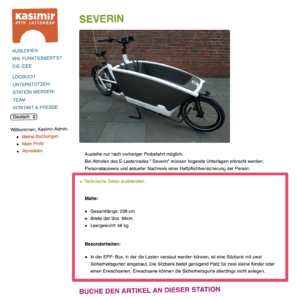
A plugin such as Show-Hide/Collapse-Expand can be used to collapse information.
My site is very slow, what can I do?
Expand for answer
If your CommonsBooking site is very slow, there may be several underlying causes. We use a technology called caching, which keeps frequently requested data in temporary storage to save server resources.
Caching may not work under certain conditions, for example when:
- WP_DEBUG is enabled; in that case you need to edit your wp-config.php
- The /tmp/ folder on your server is not writable. If that is the case, contact your web host and ask them to make the folder writable.
- If that is not possible, you can set the path for the filesystem cache in the CommonsBooking settings under "Advanced Options". Ask your web host which folders on the server are available for temporary files.
- If that is also not possible: Go to your Site Health screen at (http://YOUR-URL/wp-admin/site-health.php?tab=debug). There you will find the path to your WordPress directory under Directories. Alternatively, choose a folder in the format
YOUR_DIRECTORY/symfonyas the cache target. Warning: This can cause your WordPress directory to grow very large.
Alternatively, you can install Redis on your server and let Redis manage the cache. Since Redis stores the cache in RAM instead of the filesystem, it is usually a bit faster.
How do I show lock codes in emails?
Expand for answer
A frequent question is whether lock codes for combination locks can be added to items or locations so that they are displayed in the sent emails.
This is possible via so-called meta fields, which are assigned to items and locations. These fields can then also be used in email templates.
How do I temporarily block individual users?
Expand for answer
Do you want to temporarily block users for a certain period of time, e.g. because they use the rental service excessively or violate the rental conditions?
The recommended approach is to use a dedicated WordPress plugin for blocking users. If your users cannot do anything on the site other than making bookings, this is also the simplest solution.
The plugin User Blocker has been tested and works without issues, including a timer function. There are other plugins available with the same functionality.
Blocking specific user groups is not a built-in feature of CommonsBooking and is unlikely to be added soon, as existing WordPress plugins already cover this use case well.
How do I allow booking across closed days?
Expand for answer
If you want to allow your users to book an item across closed days (e.g. over a weekend when the station is closed), you can configure this in the location settings.
For detailed instructions, see Create Locations.
How do I increase the number of items shown in the cb_items list?
Expand for answer
The number of items shown per page is taken from the global WordPress reading settings.
To change it:
- Log in as a WordPress administrator
- Go to Settings -> Reading
- Change the value for Blog pages show at most
How do I prevent spam registrations?
Expand for answer
There are several ways to do this (suggestions from the community):
A honeypot diverts bots without bothering people: Honeypot plugin
"I once wrote a tiny plugin for UltimateMember where you simply have to enter a text to register. Accessible and it keeps all bots out: Download from GitHub. Just create a text box and enter the meta key in the plugin settings."
"We use hCaptcha for WordPress. After installation, select the registration you use in the plugin settings (e.g., UltimateMember; by default the built-in WordPress registration should be selected). To use it, you need to create an hCaptcha account. They advertise Privacy-First and that no user data is sold. I have not checked this myself." - Download from the plugin directory
Plugin & Theme Incompatibilities
Plugin: Lightstart
Expand for answer
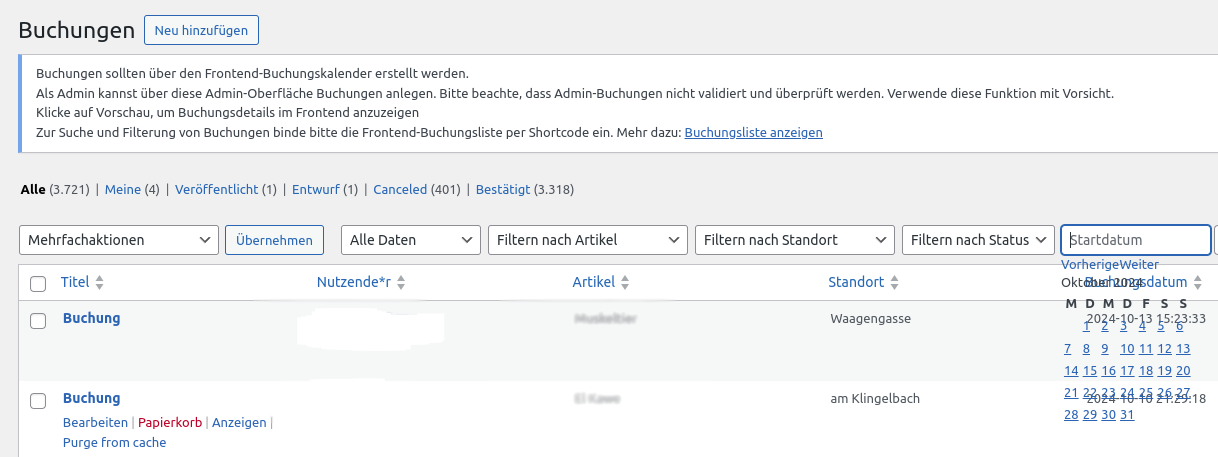
If there are problems displaying the calendar in the booking admin area (the admin backend), see the image below on the right, one possible solution is to disable or remove and reinstall the "Lightstart" (wp-maintenance-mode) plugin. The issue is an incompatibility between Lightstart and CommonsBooking and not a bug in CommonsBooking's code. The problem does not occur after reinstalling Lightstart. More details on GitHub in the CommonsBooking source repository.
Theme: GridBulletin
Expand for answer
The latest version of GridBulletin is incompatible with CommonsBooking. Problems occur when the footer is enabled. One concrete issue is the missing booking calendar on the item page. From a technical perspective, the required JavaScript sources from CommonsBooking are not being loaded. The root cause within the GridBulletin theme or a solution has not yet been found.
Plugin: All-in-one-Event
Expand for answer
Fixed since 2.7.2 (06.2022)
For experts see Issue 675
Unfortunately, using the "All-in-one-Event" plugin at the same time causes errors, so that pages generated by CommonsBooking are not displayed.
The cause is unfortunately due to poor programming of the All-in-one-Event plugin, which does not adhere to WordPress standards and intervenes so deeply in WordPress that it virtually overwrites the program logic of CommonsBooking.
We have tried a few things to enable parallel use, but unfortunately have not found a solution yet.
If you also have the problem, please write directly to the plugin's support, maybe they will adapt their plugin at some point.
Plugin: REDIS Object Cache
Expand for answer
In connection with the Cache, there have been problems with other WordPress plugins such as 'REDIS Object Cache' in the past. For this reason, we advise against using such plugins.
The pages generated by CommonsBooking should be excluded from optimization by third-party plugins. CommonsBooking uses its own caching.
Plugin: Ultimate Member
Expand for answer
If you use the Ultimate Member plugin and want to use the "CommonsBooking Manager" user role, you have to check a box in Ultimate Member for the cb_manager role to activate it for admin access.
Plugin: Autoptimize / Caching plugins
Expand for answer
Optimization plugins or other caching plugins can cause CommonsBooking to not display all pages correctly.
Affected plugins include (incomplete list):
- Autoptimize
The pages generated by CommonsBooking should be excluded from optimization by third-party plugins. CommonsBooking uses its own caching.
Have you noticed a problem?
Add incompatible plugins or themes here!