
Location map with filters
Your items can also be displayed on a map.
With the "Map" feature, you have the option to display your items on an interactive map. Especially for projects in larger cities and with multiple items, the map provides users with a good overview of all available locations.
How do I create maps?
In the "Maps" menu item of the CB plugin, you have the option to create a CB map and configure it according to your preferences. You can also create multiple maps that can be embedded at different locations and with different parameters (e.g., filters).
Embedding a map on a website
Under "Map display", you will receive the shortcode for embedding on your website.
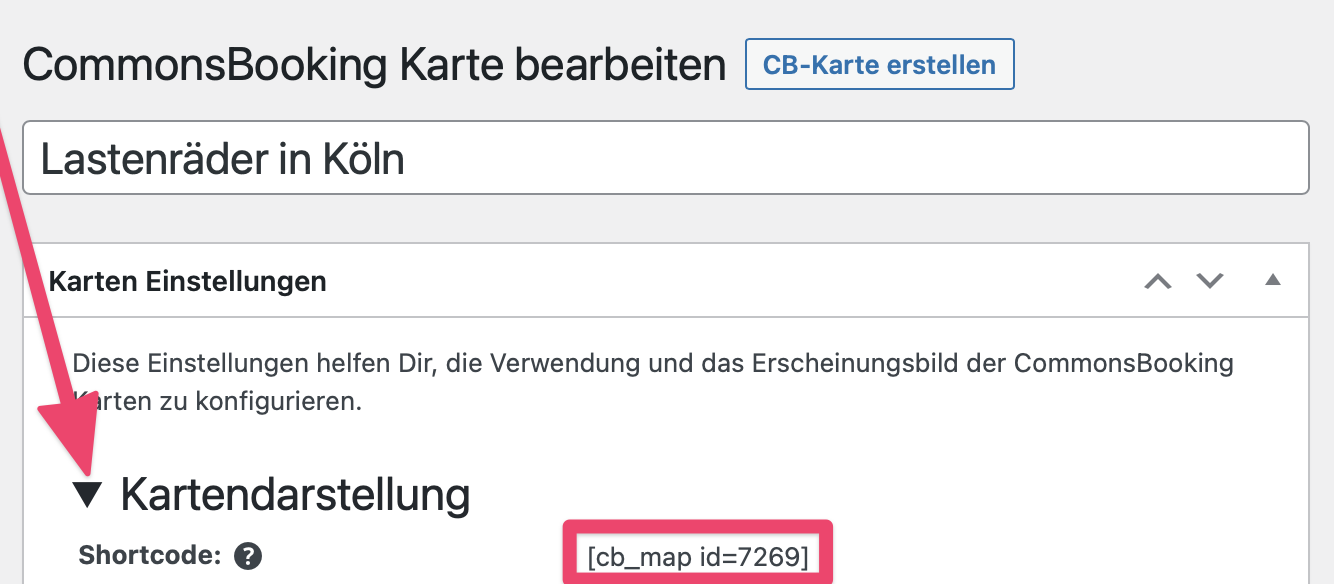
In the example, the shortcode is: [cb_map id=7269]
You can then embed this shortcode on the desired page. For example, on your project's homepage, with the locations or with the items.
In this menu item, you can also select which OpenStreetMap (OSM) base map your map is displayed on and what height in pixels it should have.
Zoom
Here you can set the minimum and maximum zoom level, as well as the initial zoom level displayed.
Map positioning (center) on initialization
Here you enter the latitude and longitude for the center of your map.
Adaptive map section
Here you can set how the map section automatically adjusts:
- Initial adjustment to marker bounds: When the map is loaded, the map section automatically adjusts to the bounds of the displayed markers.
- Adjustment to marker bounds on filter: The automatic adjustment of marker bounds occurs when users apply filters
Marker tooltip
You can activate the permanent display of marker tooltips here.
Marker popup
Here you can set which information is displayed in the popup of each marker on the map:
- Show item availability
- Number of available days in popup
Custom marker
Here you have the option to upload an image file for a custom marker.
Cluster
In this field, you can combine markers within a certain radius into a cluster. 0 px = disabled
Custom cluster markers
Appearance by item status In this section, you can set whether (only) drafts are also displayed on the map.
Custom item draft marker Items that are still in draft status can be provided with a custom icon here.
Filters for users In this menu item, you can define the search filters for users.
- Show location distance filter: this activates the filter
- Label for location distance filter: In this box you can label the filter
- Address search bounds – bottom left
- Address search bounds – top right
- Show item availability filter
- Label for item availability filter: Activation
- Label for item category filter: Here you can label the filter for the different categories of your items. For cargo bikes, these would be the equipment features.
- Available categories: for example, electric drive, two or three wheels, child transport, etc.
- Group custom markup for filters
- Filter group
Filter presets
Preset categories