
Assign access rights (CB Manager)
In WordPress, users with the role "Administrator" can usually do everything. In CommonsBooking, people with this role are also the ones who create items and locations, create timeframes, view bookings, and so on. Sometimes you may want to define roles that cannot edit everything on the site, but only certain items or locations. This allows stations, for example, to administer themselves without always relying on an administrator.
CommonsBooking offers the option to set up so-called CB Managers. They can then manage ONLY specific items / locations. In practice, these could be employees of the shop where an item is stationed.
The following is allowed for a CommonsBooking Manager:
- Create items, locations, and timeframes
- If assigned or self-created: Edit items, locations, and timeframes
- Self-created timeframes can be moved to the trash
- No rights to delete or move items and locations to the trash
- Cancel bookings that belong to items they administer.
On the item and location pages, permissions to manage items, locations, and bookings can be assigned. For this, people with the role "CommonsBooking Manager" can be added individually to items or locations. The role is added by CommonsBooking to the WordPress user management and can be assigned to individual users in the admin interface. Assignment can only be done by administrators. CommonsBooking Managers cannot assign permissions themselves.
On the item and location pages, managers can then be selected and added. Only users who have previously been assigned the role "CommonsBooking Manager" are available for selection.
Managers access the admin interface via the same link that general administrators use to access the WordPress backend.
Administrator vs CommonsBooking Manager
The following table shows, as an example, what a CommonsBooking Manager can do compared to an administrator.
| Function | Administrator | CommonsBooking Manager |
|---|---|---|
| Create items / locations | Yes | Yes |
| Edit items / locations | Yes | Yes (only if assigned) |
| Delete items / locations | Yes | No |
| Create timeframes | Yes | Yes (only with assigned items / locations) |
| Edit timeframes | Yes | Yes (only with assigned items / locations) |
| Delete timeframes | Yes | No (only self-created) |
| Cancel bookings | Yes | Yes (only with assigned items / locations) |
In addition, CommonsBooking Managers have no special permissions regarding other parts of the website. For example, a CommonsBooking Manager cannot:
- Edit general pages
- Change plugins
- Change the site design
- etc.
Make a CommonsBooking Manager a manager for all items / locations
With a filter hook you can set a specific role so that it automatically becomes a manager for all items / locations. The example below does this for the role 'cb_manager', i.e. it configures the CB Manager to be automatically assigned to all items and locations in the instance. If this should happen with a different role, that role must also be added to the manager roles with an additional code snippet.
add_filter(
  'commonsbooking_isUserAdmin',
  function ( bool $isAdmin, WP_User $user ) {
    return in_array( 'cb_manager', $user->roles, true ) ? true : $isAdmin;
  },
  10,
  2
);
Adjust access rights
If the available permissions are not sufficient or you want to add a second role that has fewer permissions than the CB Manager, you can use plugins to adjust user role permissions (e.g. User Role Editor).
For reference: The internal names for items / locations / timeframes / bookings, etc. are often used. Therefore, here is an overview table of the internal names and their meaning.
| External name | Internal name |
|---|---|
| Items | cb_items |
| Locations | cb_locations |
| Timeframes | cb_timeframes |
| Maps | cb_maps |
| Bookings | cb_bookings |
| Restrictions | cb_restrictions |
Here are the names of the various permissions that can be assigned to a role:
Management permissions
| Permission | Effect |
|---|---|
| manage_commonsbooking | CommonsBooking menu item clickable in the backend (prerequisite for all other permissions) |
| manage_commonsbooking_cb_booking | Show the bookings menu item in the backend |
| manage_commonsbooking_cb_item | Show the items menu item in the backend |
| manage_commonsbooking_cb_location | Show the locations menu item in the backend |
| manage_commonsbooking_cb_map | Show the maps menu item in the backend |
| manage_commonsbooking_cb_restriction | Show the restrictions menu item in the backend |
| manage_commonsbooking_cb_timeframe | Show the timeframes menu item in the backend |
These permissions only define whether the menu item is shown in the backend for administrators. That does not yet mean that the roles are also allowed to edit items.
Only if all manage_xxx permissions are disabled does the "CommonsBooking" tab also disappear from the options. For example, if only the manage_commonsbooking_cb_location permission is set, the role can see the menu item but cannot access it.
Editing permissions
Each type of post (items / locations / timeframes / maps / restrictions) has its own permissions that follow a fixed schema. Since the names are self-explanatory, they are not described here in detail; here is only a screenshot of the permissions for an item.
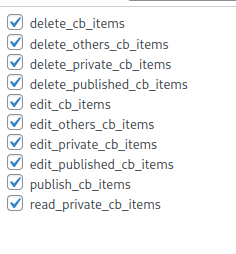
Only if the corresponding role has the permission for an action can it carry it out. That means, for example, granting the manage_commonsbooking_cb_item permission makes little sense if you do not also grant the edit_cb_items permission or another item-related permission.
The edit_other_cb_bookings permission is especially relevant here. It determines whether a manager is able to cancel bookings made by other users.
Assign other roles to an item / location
From version 2.8.2
With a small code snippet it is possible to define another role that can be assigned to an item / location and can then edit it according to its permissions. This works with a filter (you can also find more information about code snippets there). The filter is called commonsbooking_manager_roles and can be used as follows:
add_filter('commonsbooking_manager_roles', 'add_manager' );
function add_manager( $array ){
    $array[]='editor';
    return $array;
}
This code snippet would add the role with the name 'editor' to the roles that can be added to an item. It is important to use the slug of the role.